

Agents
How Keural runs work by planning it and assigning it to specialized agents.
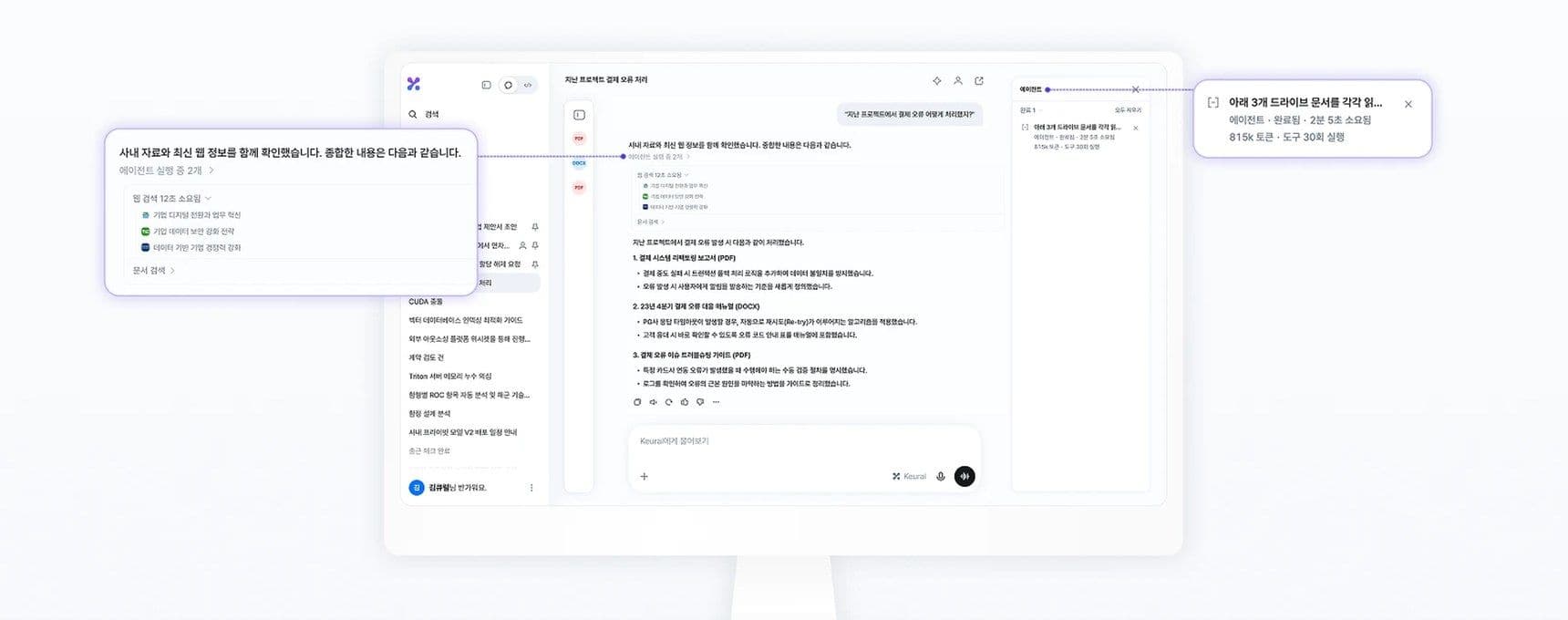
Keural's answers are led by a coordinator agent. The coordinator reads the request and decides whether to answer directly or split the work. For large tasks, it creates a to-do list, assigns the work to the specialized agents below, and then collects the results and answers.
If you ask for something like "research this in parallel," independent research tasks are assigned to multiple agents at the same time.
Specialized agents
| Agent | What it does | When used |
|---|---|---|
| Web research | Searches the web and reads pages to collect the latest information. | When Web Search is on, or when the question includes a link |
| Document analysis | Finds evidence in Drive documents and reads them page by page. | When you ask a question based on documents |
| Full document review | Reads long documents from start to finish in sections, and checks again that no items were missed. | Questions with Deep Research turned on. |
| File creation | Creates Word and PDF documents, Excel and CSV tables, PowerPoint presentations, and text, Markdown, or code files. | When you ask for the result as a file |
| Image reading | Reads and analyzes attached photos, screenshots, and drawings. | When you attach an image |
| Audio and video reading | Listens to and watches attached audio and video files. | When you attach audio or video in an environment where a model that reads audio and video is configured |
| Ideation | Expands plans and ideas, and organizes them against existing materials. | Planning or brainstorming requests |
| Document verification | Checks whether document content matches criteria or sources. | Verification or cross-checking requests |
| Proofreading | Polishes sentences and corrects spelling. | Proofreading requests |
| My folder | Finds and reads files in a folder you connected in the desktop app (read-only). | When you have connected a folder |
| Code exploration | Understands the structure of a codebase and finds the places that matter (read-only). | Code mode |
| General | Handles research and calculations that do not fit the above. | Other tasks |
Plugins you connect also accept work from the agent, just like the agents above.
Viewing progress
While an agent is working, the task panel shows the to-do list and the status of each step. Completed tasks show their elapsed time and usage. Work continues if you navigate to another screen.
If a task makes no progress for about 30 minutes, it stops and asks whether you want to continue.
Running code
When data analysis or calculation is needed, the agent writes Python code and runs it in an isolated sandbox. In code mode, commands run on your computer and follow the approval mode.
Safeguards
- Actions that change state, such as writing or deleting files, running shell commands, git commit or push, and plugin tools, require approval before they run by default. If you change the approval mode, some actions run without asking.
- File operations in the desktop app are limited to the folders you connected.
- A single request has limits on tokens, tool calls, and time. When a limit is reached, the results so far are shown along with the scope they cover.
- Counts and lists produced from search results are results within the range that was checked. If a document was not read in full, the answer shows that limit.