

Code and Cowork
Connect folders and repositories so the agent can work on your files and code.
Cowork
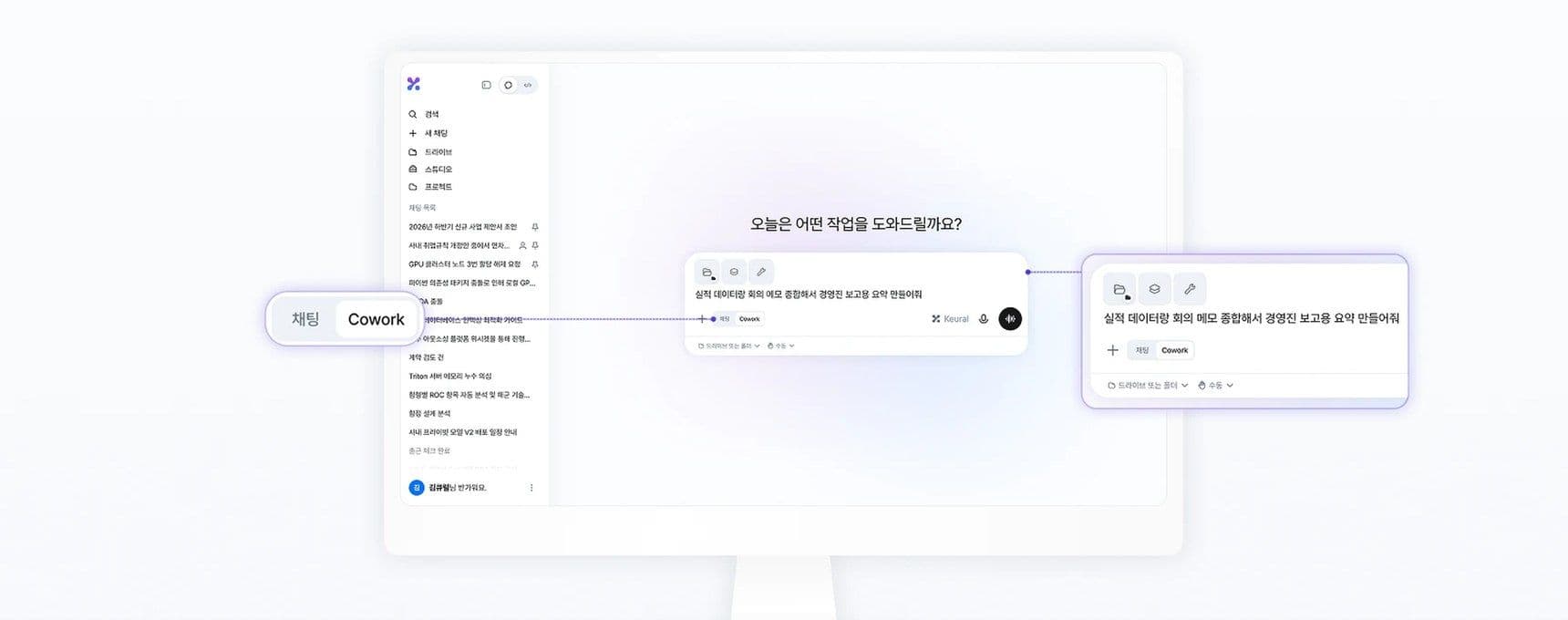
Cowork is a mode in which you hand a folder to the agent in a chat. In a new chat in the desktop app, select Cowork below the input box instead of Chat, then use Add folder to connect one or more folders. Use it to save a report draft to a folder or to organize multiple files in a folder at once. The approval modes are the same five as in code mode.
Code mode
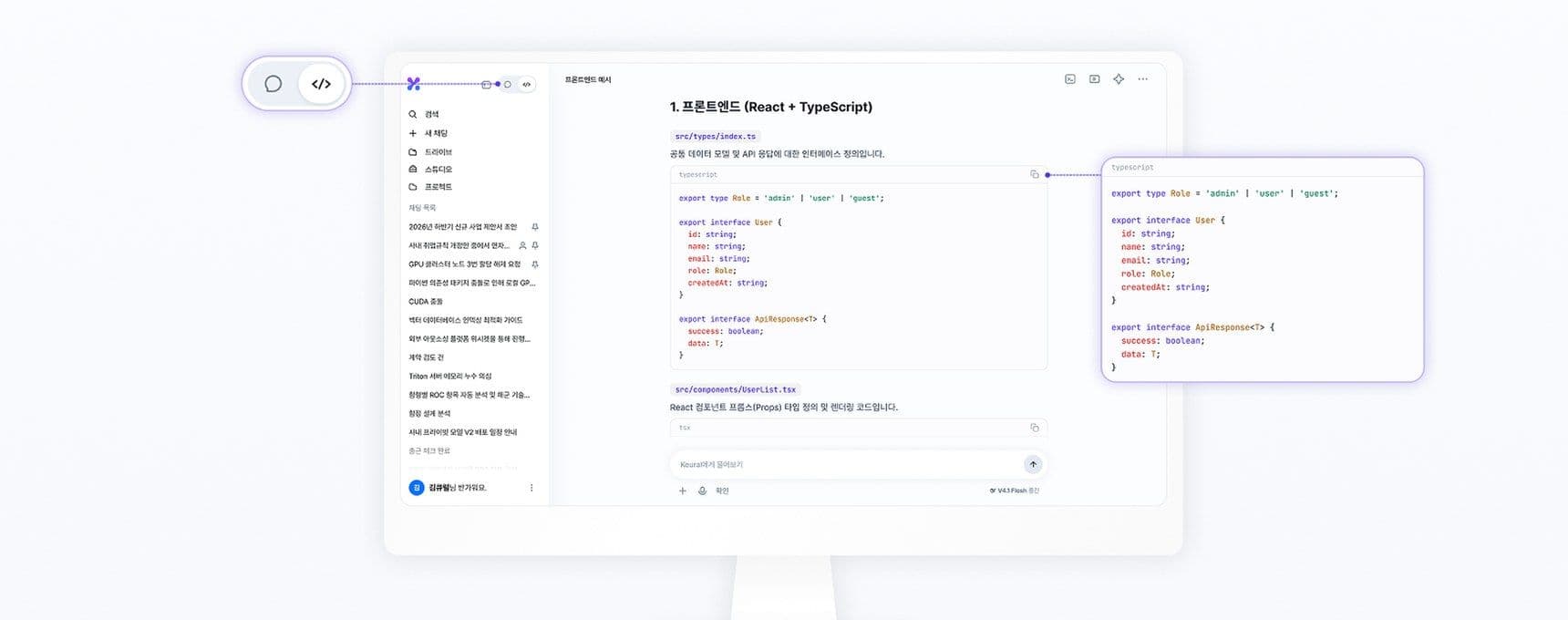
Choose Code in the Chat / Code switch at the top of the sidebar (if the sidebar is collapsed, use the Code icon) to open the code work screen. The agent reads your project, writes and edits code, and runs commands. Beside the screen, a terminal, changes (diff), file tree, outputs, and conversation info (context usage and connected plugins) are displayed. Choose the model by level, as in chat, and choose Thinking (Fast, Medium, High, Extra, Max) separately.
Where it runs
| Location | Description | Where to select |
|---|---|---|
| This device | The desktop app works directly in the project folder on this computer. It supports reading, searching, and editing files, shell commands, and git commit and push. | Desktop app |
| Cloud (Keural Cloud) | Works in a cloud environment by pulling a GitHub repository. It can commit and push to a working branch and create a PR. Requires a GitHub connection. | Desktop app (web and mobile if you have registered a desktop device) |
| Remote device | Hands the work to a registered desktop device of yours. That device must be turned on. | Web and mobile |
If you select a local model, cloud and remote devices cannot be used. In offline mode, work runs only on this device.
Remote Control
To view and direct a code session in progress on your desktop from the web or your phone, select Turn on Remote Control from the chat menu in the sidebar. Messages cannot be sent from other devices to a session where Remote Control is off.
Approval modes
In the code mode input box, choose under Permissions what the agent runs without asking. Press Shift + Tab to cycle through Ask → Accept edits → Plan → Auto. Bypass permissions can be selected only from the menu.
| Mode | File writes and deletes | Shell commands |
|---|---|---|
| Ask | Approve each time | Approve each time |
| Accept edits | Automatic | Approve each time |
| Plan | Shows the plan first, and asks for approval each time it runs | Approve each time |
| Auto | Automatic | Only risky commands (sending, deleting, deploying, system changes, etc.) need approval |
| Bypass permissions | Automatic | Automatic |
Auto and Bypass permissions change your computer without confirmation. Use them only in projects you trust. Bypass permissions cannot be selected on remote devices.
The following rules also apply.
- To work with a path outside the connected folders, you are asked for approval again.
- Unless Bypass permissions is selected, shell commands that touch paths outside the folder, or that download and run code such as package installs, ask every time.
- Very dangerous shell commands are blocked before they run, regardless of the approval mode.
- The approval window shows the command to run and the files that will change. Progress and changed files remain in the conversation's work log.
Other tools
- @ file reference: In code mode, if you have connected a folder, type
@in the input box to specify a file. - GitHub connection: Under Settings → GitHub, save a personal access token or use GitHub CLI sign-in. Tokens for a signed-in account are stored on the server. Tokens used by the desktop app without signing in are stored in this computer's secure storage.
- Remote execution permission: For a PC used as a remote device, set its remote execution permission (Allow all, Safe operations only, or Read-only) and its allowed remote folders under Settings → Security, in My devices.
- Agent browser: The agent opens web pages, operates them directly, and checks them. See Browser and app control.
Mobile app
In the mobile app, hand work to the cloud or a remote device from the code screen.