

Chat
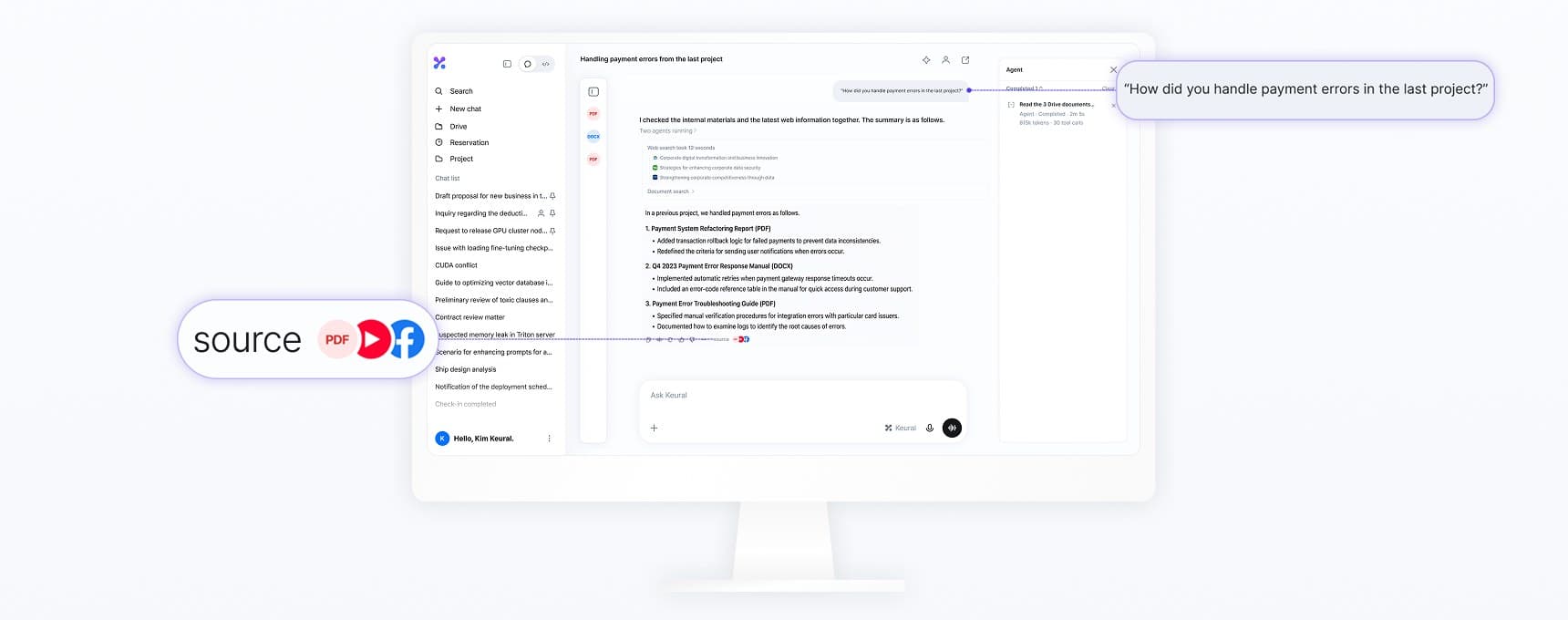
Keural's core conversation screen, which answers using your internal documents and the web.
Basic use
When you send a question in a new chat, Keural picks the tools it needs and answers. Simple questions get answered right away. Questions that need research are handled by agents, which break the work into steps. Steps in progress are displayed collapsed in the work log above the answer.
For input box options (level and model, Web Search, file attachments, / commands, keyboard shortcuts), see Composer. For answer actions (copy, regenerate, export, fork), see Working with answers.
Chat and Cowork
In the desktop app, choose Chat or Cowork below the input box in a new chat.
- Chat: Regular conversation. Answers are based on Drive and the web.
- Cowork: The agent reads and writes files in the folder you connect. See Code and Cowork for details.
The mode is fixed to the chat once you send the first message. To use a different mode, open a new chat.
Sources
When an answer is based on Drive documents or the web, sources are shown in the answer. Click a source to open the relevant page of the original file or the web page in the side panel.
The file viewer opens PDF, Word, Excel, PowerPoint, Hangul (HWP and HWPX), images, text, Markdown, HTML and code files, video, and audio. Hangul documents are cited as a whole, so page numbers may not be shown.
Speaking while an answer is generating
You can send a message while the answer is in progress.
| Input | Action |
|---|---|
| Enter | Applies the message to the next step of the answer in progress. If it can't be applied at that point, it is sent after the current answer finishes. |
| ⌘/Ctrl + Enter | Adds the message to the queue and sends it after the current answer finishes. |
| Esc | Stops the answer. |
A message with file attachments is not applied to the answer in progress. It is sent as a new question after the answer finishes.
If you send a message that changes direction, the earlier part of the answer remains collapsed. You can expand it to view it.
Memory and personalization
Keural saves facts needed for later conversations to Saved memory, and applies custom instructions to every conversation. For details, see Personalization and memory.
Organizing your chat list
In the sidebar, filter the chat list by Pinned, Shared, or Recent. The chat row menu contains the following.
| Menu | Action |
|---|---|
| Pin | Pins the chat to the top of the list. |
| Share | Lets others view the chat with you. See Sharing and export. |
| Export | Exports the chat as a Markdown, Word, or PDF file, or as a copy link. |
| Rename | Changes the chat title. |
| Move to project | Adds the chat to a project. Shown when you have a project. |
| Delete | Deletes the chat. |
While the menu is open, you can also select an item with a letter key. P Pin, S Share, R Rename, D Delete. The task list in code mode additionally has Fork, Move to group, and Archive.
You can also select several chats and pin, move to a project, or delete them at once.
Search
Use Search in the sidebar to find chats by title and content. Select a result with the arrow keys and press Enter to open it.